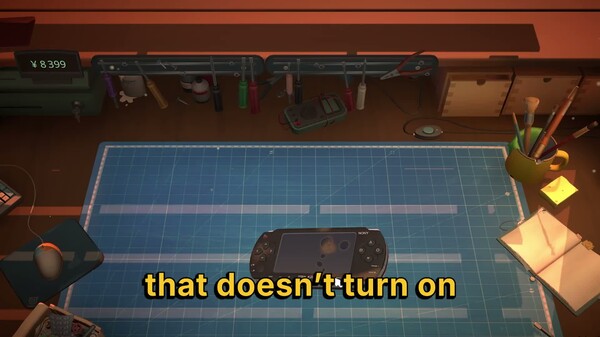
Restory: chill electronics repairs controls
Keyboard and mouse

ReStory: Chill Electronics Repairs is a cursor-driven repair sim, so the mouse does most of the heavy lifting while you are at the workbench. The keyboard covers camera movement, menu navigation, and quick tool switching. The defaults are simple enough to learn in your first repair order, but knowing the exact bindings makes later jobs with multiple broken parts much faster.
Core interaction and camera
- Left mouse button
- pick up parts, press tool buttons, and confirm placements on the device.
- Right mouse button
- secondary tool action such as desoldering a joint or blowing dust off a board.
- Mouse wheel
- zoom in and out of the workbench for tight soldering work.
- Move mouse to screen edge
- pan around the workshop and shop counter.
- E
- talk to a customer, accept an email order, or confirm a dialogue choice.
- Esc
- open the pause menu and settings.
Tool shortcuts and workbench keys
Most repairs follow the same flow: open the shell, clean the internals, fix broken joints, and reassemble. The number row shortcuts mirror the tool tray so you can keep that flow going without constantly clicking the UI.
- 1-5
- select the main tools: screwdrivers, tweezers, cleaning brush, and soldering iron.
- Tab
- open the parts box when you need a new capacitor, screw, or replacement piece.
- R
- rotate a part before placing it into the device.
- Space
- confirm an in-game prompt or advance to the next step of a repair.
- Ctrl
- hold to snap a part into alignment while placing it.
During soldering, hold the right mouse button to keep the iron on the joint instead of clicking repeatedly. This gives you a steadier heat application and reduces the chance of lifting a nearby trace.
Gamepad
ReStory: Chill Electronics Repairs has partial controller support and works with DualShock and DualSense controllers on PC. The game keeps the same cursor logic, so the left stick moves a virtual pointer around the workbench while the right stick handles the camera. It is a comfortable way to play, though a few menus still work better with a mouse nearby.
- Left stick
- move the cursor across the workbench, shop floor, and UI panels.
- Right stick
- pan and zoom the camera around the repair station.
- Cross / A
- confirm, pick up a part, or start a tool action.
- Circle / B
- cancel, put a part back, or close a menu.
- L1 and R1 / LB and RB
- cycle through the tool tray left and right.
- L2 / LT
- rotate the selected part while placing it.
- R2 / RT
- secondary action such as desoldering, mirroring the right mouse button.
- Options / Menu button
- open the pause menu and settings.
If the virtual cursor feels slow over long repair sessions, check the cursor speed slider in the settings menu. The default speed is tuned for DualSense on Steam, so a third-party controller may need a slightly higher or lower value.
Tips and rebinding
Rebinding matters more here than in most sims because you repeat the same tool swaps dozens of times per in-game day. ReStory: Chill Electronics Repairs lets you remap most keyboard actions, so take a minute to arrange keys around your most common repair sequence before you start accepting bigger orders.
- Keep the soldering iron on a quick slot you can hit without looking. The iron and the cleaning brush are the two tools used most often across consoles, phones, and music players.
- Assign the blow dryer or air duster to a secondary key if you clean multiple boards between soldering jobs.
- Put confirm actions on the same side as your mouse hand so you do not reach across the keyboard during customer dialogue and email orders.
- Rebind Tab if you keep opening the parts box by accident while sweeping across the workbench.
- With a gamepad, keep the mouse nearby for the marketplace and license purchase screens, since those are the spots where partial controller support is least complete.
A good default layout follows the repair flow instead of the menu order. Set 1 to the screwdriver,2 to the cleaning brush, and 3 to the soldering iron. That way a full teardown flows in one direction, and you never have to glance down to find the next tool while a customer is waiting at the counter.